
Block-based linking
Capacities lets you link to individual blocks inside of an object, and reference them in other pages. We call this concept block-based linking or just block references.
Update
You can now use block references within the same object. This feature was requested in this ticket and has been released in July 2025.
This not only lets you link to other blocks, but it also lets you embed individual blocks and their children inside another page.
Searching for blocks
The easiest way to link to a block is by searching for it. Type (( anywhere in your content and a search will open. Search for the content of the block you want to link to. The search results show the name of the containing object on the right to help you find the correct block.
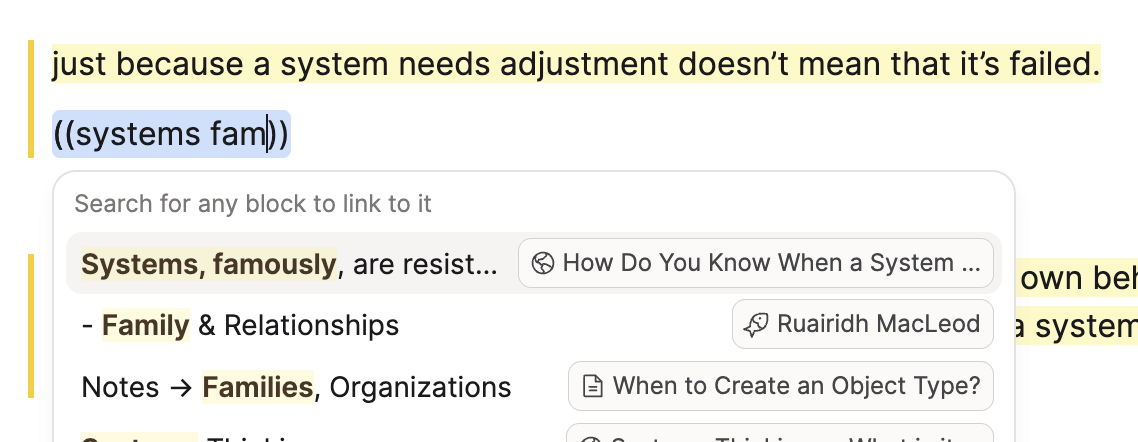
Press enter when you find the block you're looking for, and it will create a link to that block. Learn more about linking search.

Copying a block reference
Alternatively, you can manually copy a block reference if you're already viewing the block you want to link to.
Go to the block you want to link to or embed elsewhere. Open the block menu by clicking on the handle with the six dots at the top left. Go to Copy > Copy block reference.
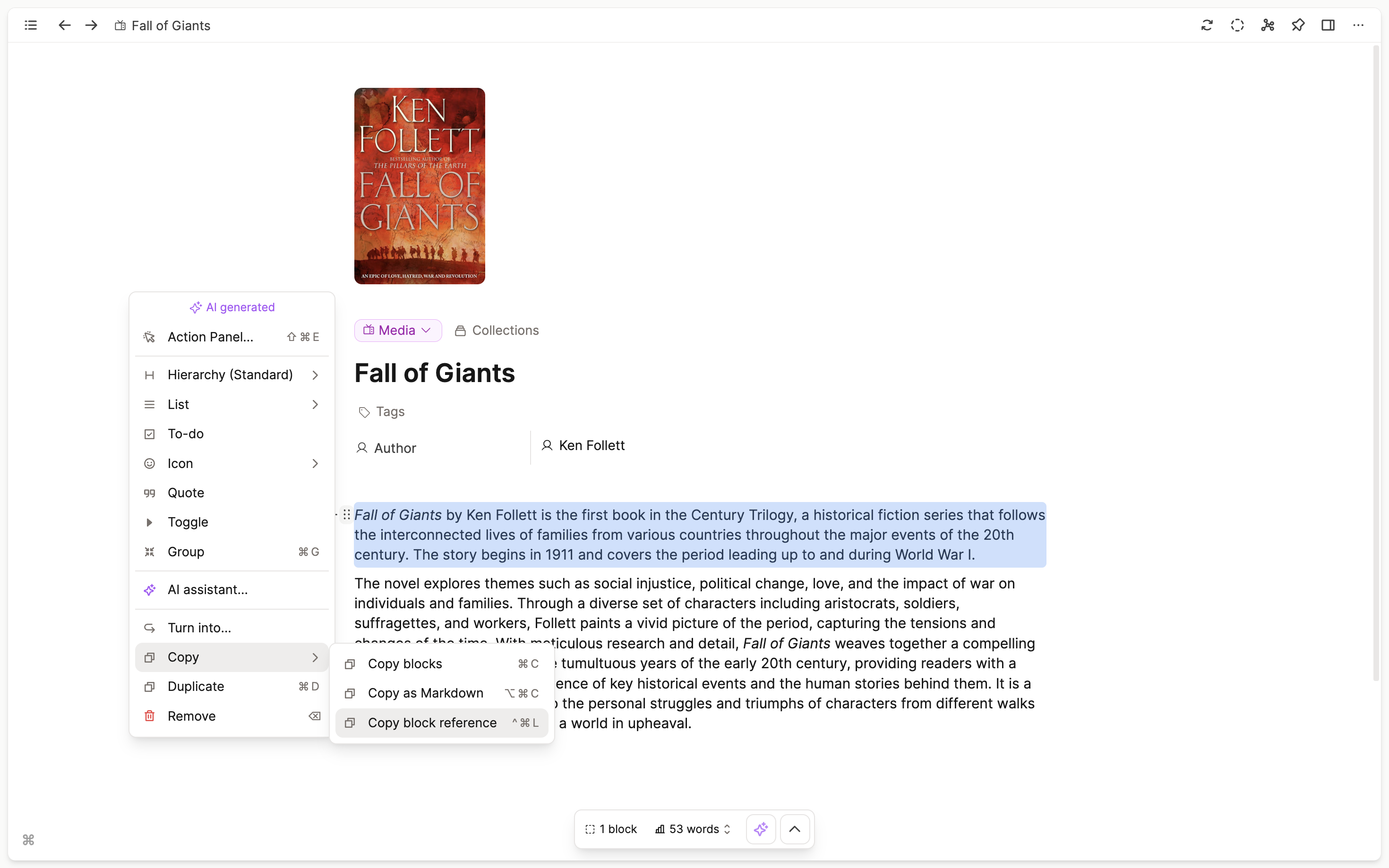
This will copy the link to this block to your clipboard. The last step is to paste this link at the place where you want to link or embed the block.
Embedded vs. inline block references
If you paste a block reference into an empty block, it creates an embedded view of that block.
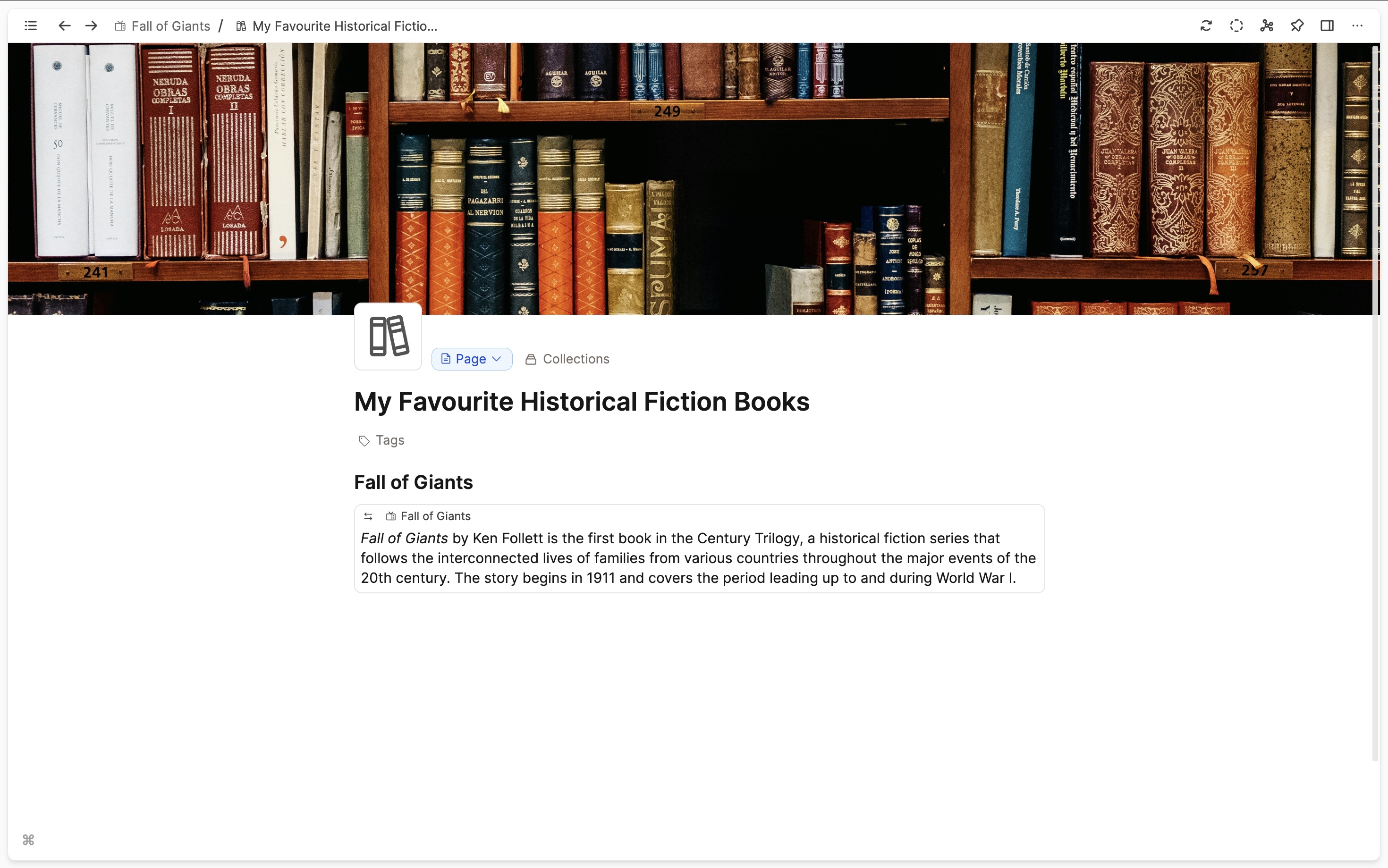
Pasting a block reference somewhere inside your text will result in a simple link to that block.

Transclusion
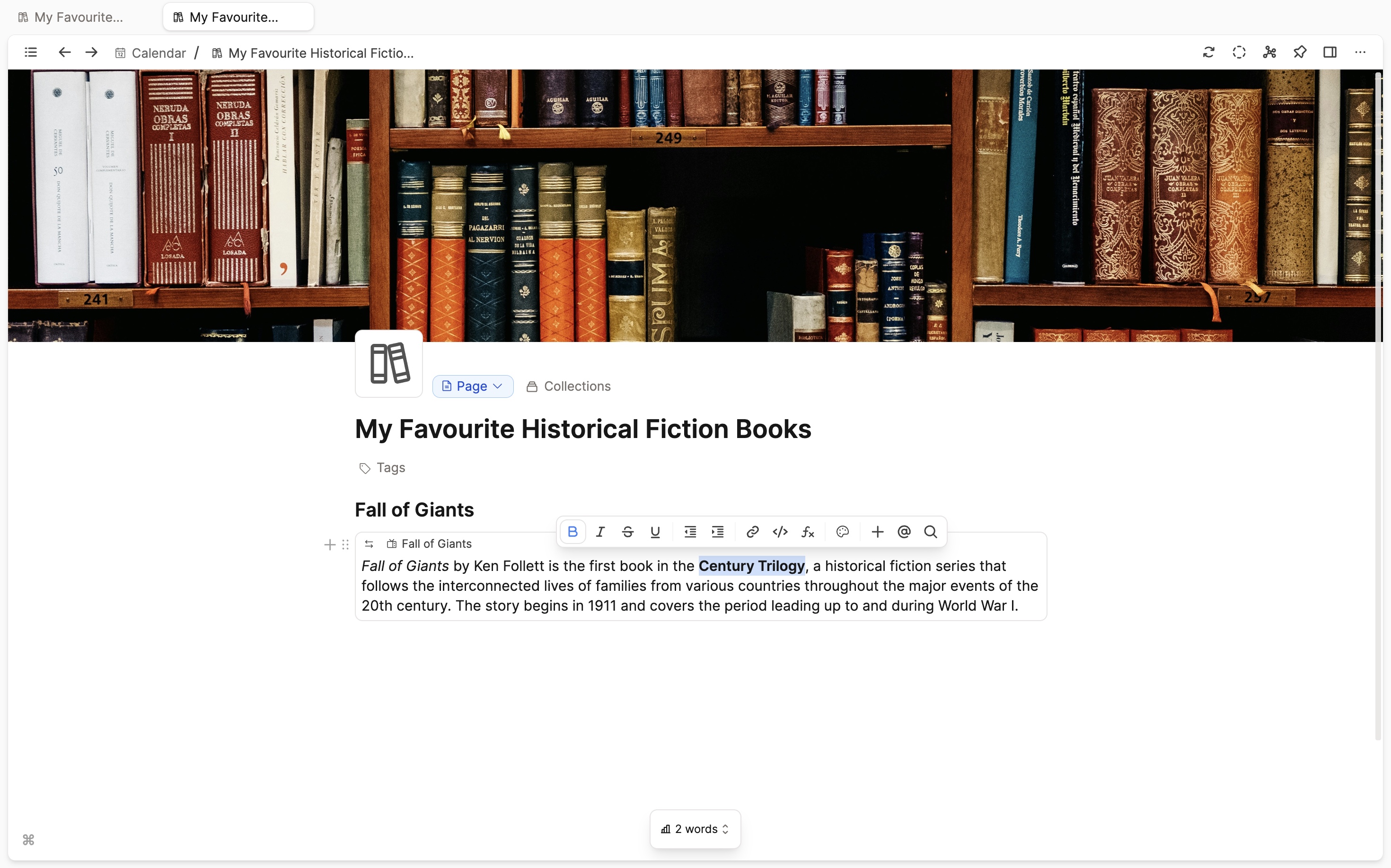
An embedded block is identical to the original. This means that any edits will occur in all places where this block is used. This concept is called transclusion.
Navigating block references
You can jump back to the original context of an embedded block by clicking on the link at the top left, which displays the name of the object the block originates from. If you go to the referenced block in its original context, you will notice the small icon with two arrows pointing left and right with a counter. This indicates how many times the block is being referenced.
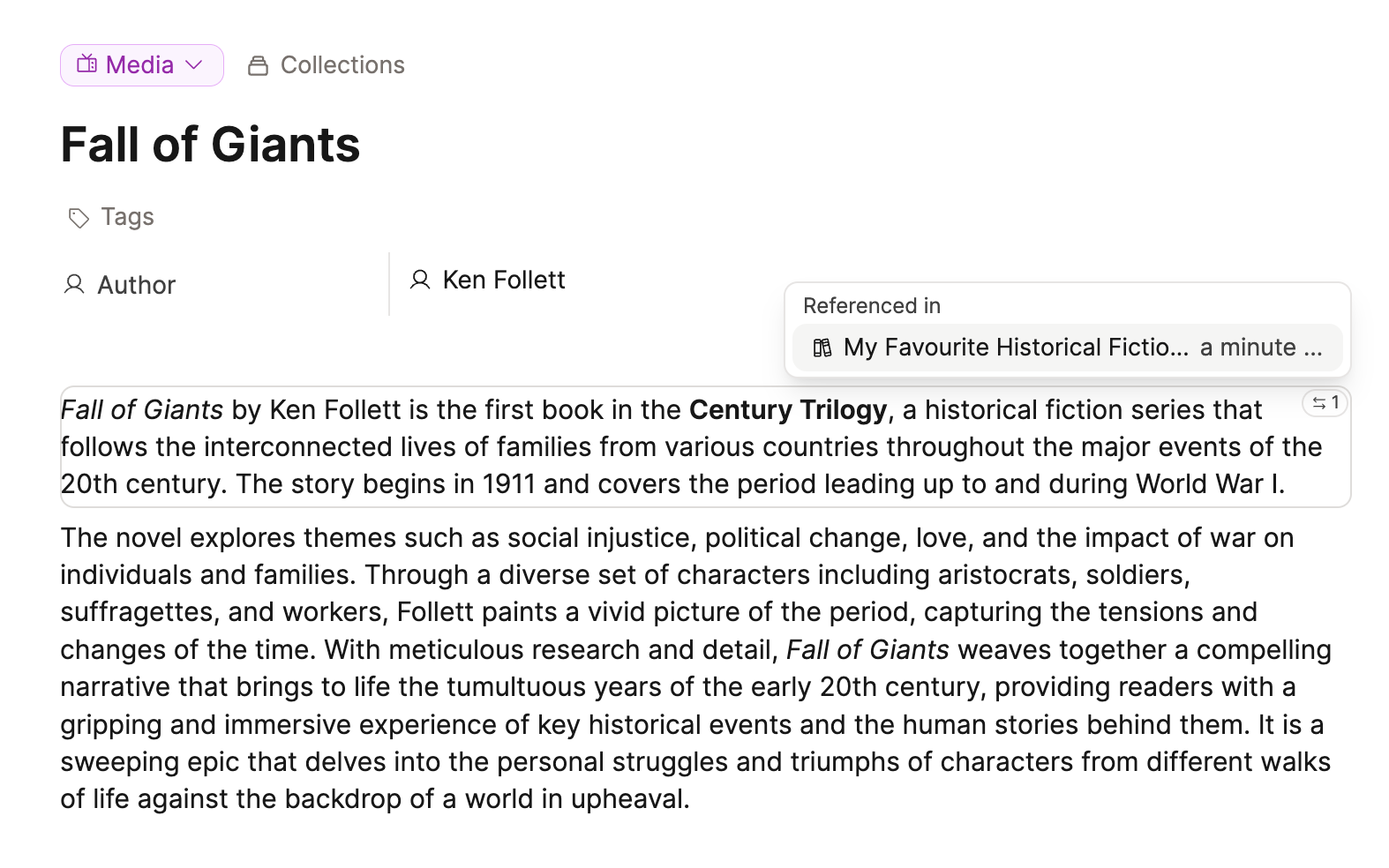
If you click on this icon, you get a list of all objects from which the block is being referenced. Clicking on them will lead you to the exact position. Note that you can use the same modifiers as explained in navigation to open the block reference in the side panel or a new tab.