

Search & Command Palette
Search in Capacities is great for navigation, finding, and connecting your content. It works offline on all devices, giving you quick search results every time.
Here are the most important patterns to utilize search in Capacities.
Content Search & Command Palette:
Search for any content, tag, or text snippet in your space and navigate to it. Execute actions and commands, like “Open today” or “Create new page”, using the search bar. You can also paste any content to add it to your space.
Linking Search:
From within your content or in object types and on tag pages you can search for any content and just reuse it right where you are typing. Linking search is local, it allows you to connect notes and organize them. You can learn more about networked note-taking here. The content search and command palette are powerful features that make navigation and working easier, you can read more about them here:
Content Search
You can open the content search (command palette) by clicking on the magnifier icon in the space overview in the top left or by using ⌘ P on Mac or Ctrl P on Windows. It allows you to search for any content in your space and execute actions.
By typing keywords into the search bar Capacities will match it with all your written content and will display all matches in the search results. It is full-text search.
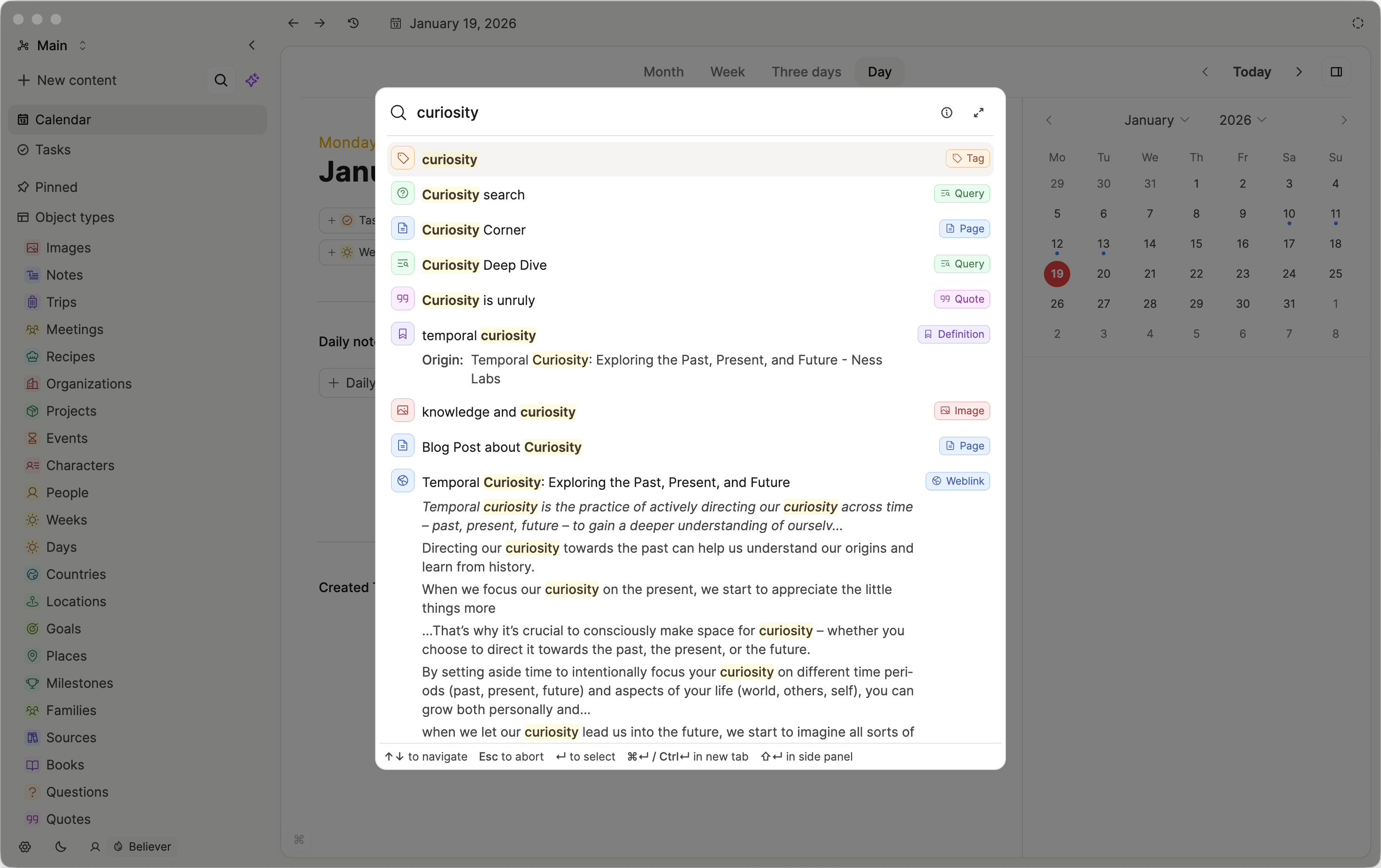
The command palette offers multiple search features if you want to refine your search further:
Start of block search (anchor search)
If you start your search with
^the search will only return objects, properties values, or blocks that start with your search term.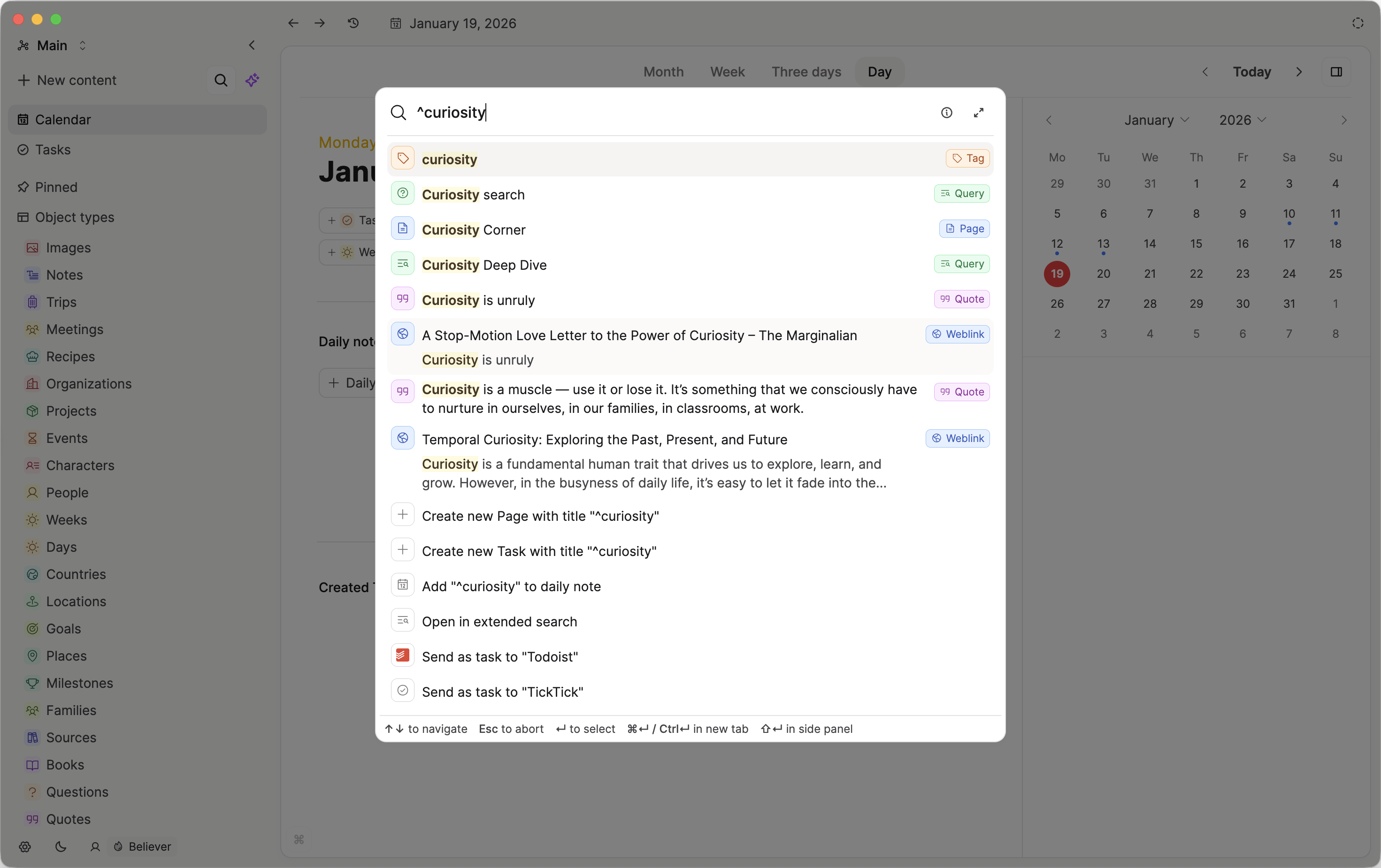
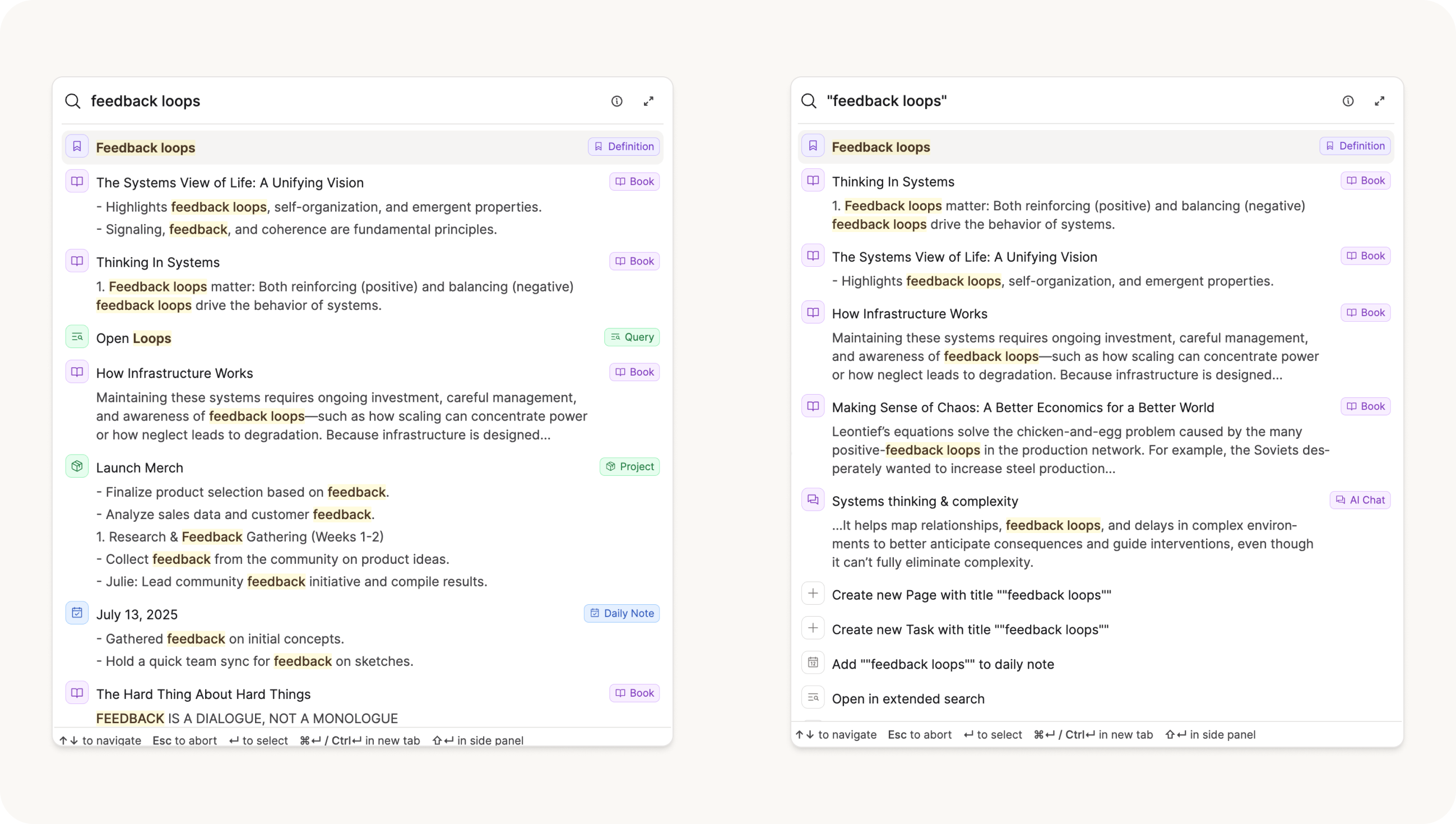
Exact search terms
If you have a multi-word search term, you can wrap it in quotes so that the search engine searches for matches of the whole term, not the word within it.
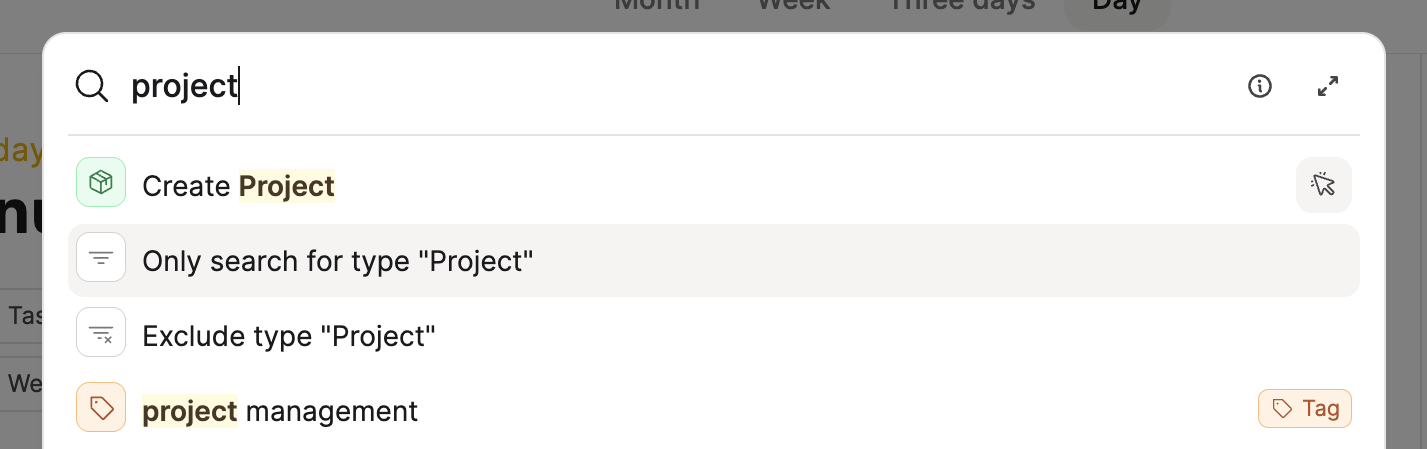
Filter by type
If you want to just search within one or two object types just start your query with your object type name, and choose your filter. You can either exclude or include types.
This also works for multiple types, just set more type filters.
Search In Objects
If you just want to search for a word or phrase within one object, open it in full screen and use the shortcut Cmd + F (Mac) or Ctrl + F (Windows).
If you just want to search for a word or phrase within one object, open it in full screen and use the shortcut Cmd F (Mac) or Ctrl F (Windows).
Type your search term in the text box. If there is a match in the page, you can use the arrows to navigate to it.
Search in object dashboards, collections, and tag pages
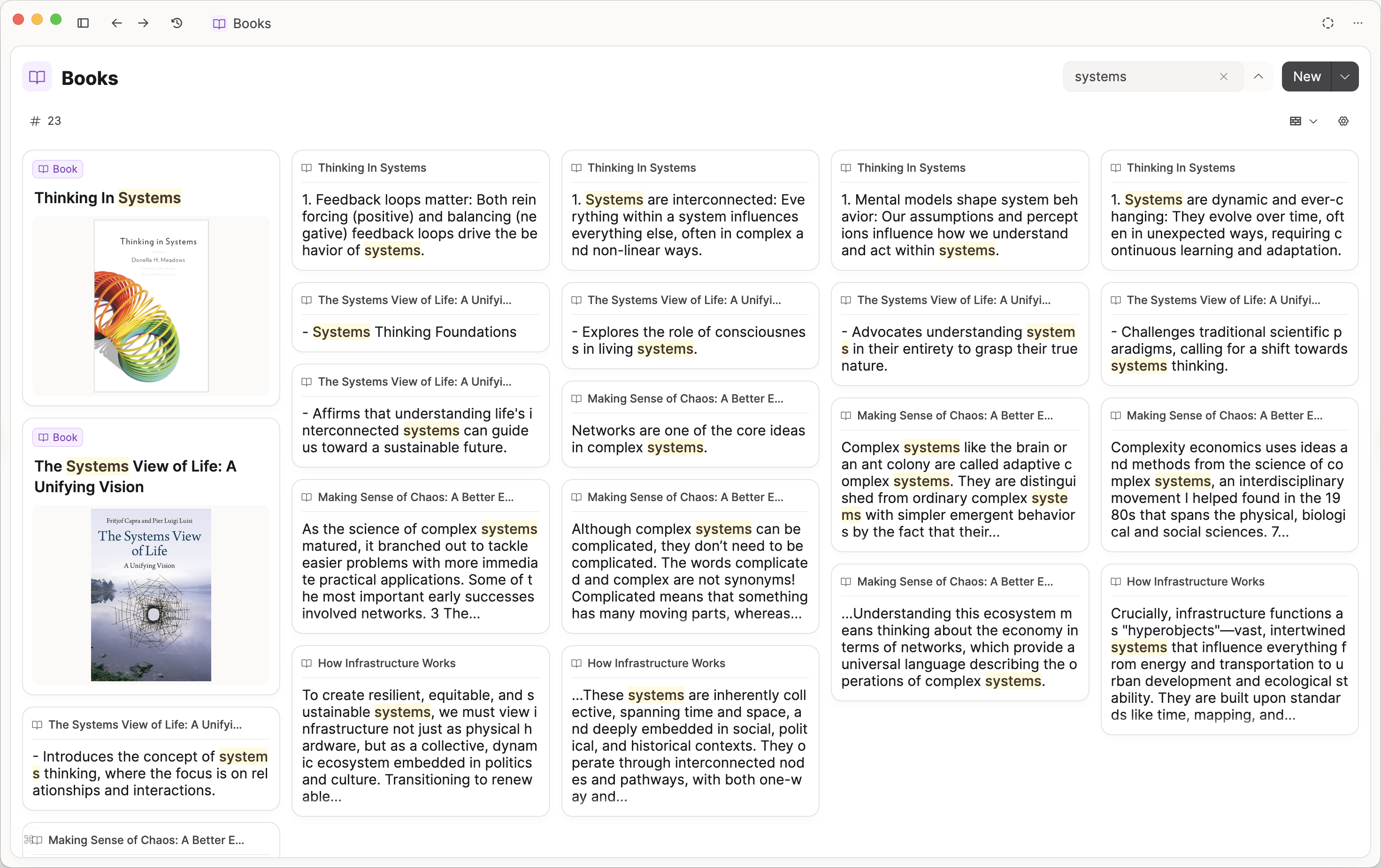
You can also find full-text search for your object types in the search bar in the top right. Object titles are prioritized over block matches.
Extended Search
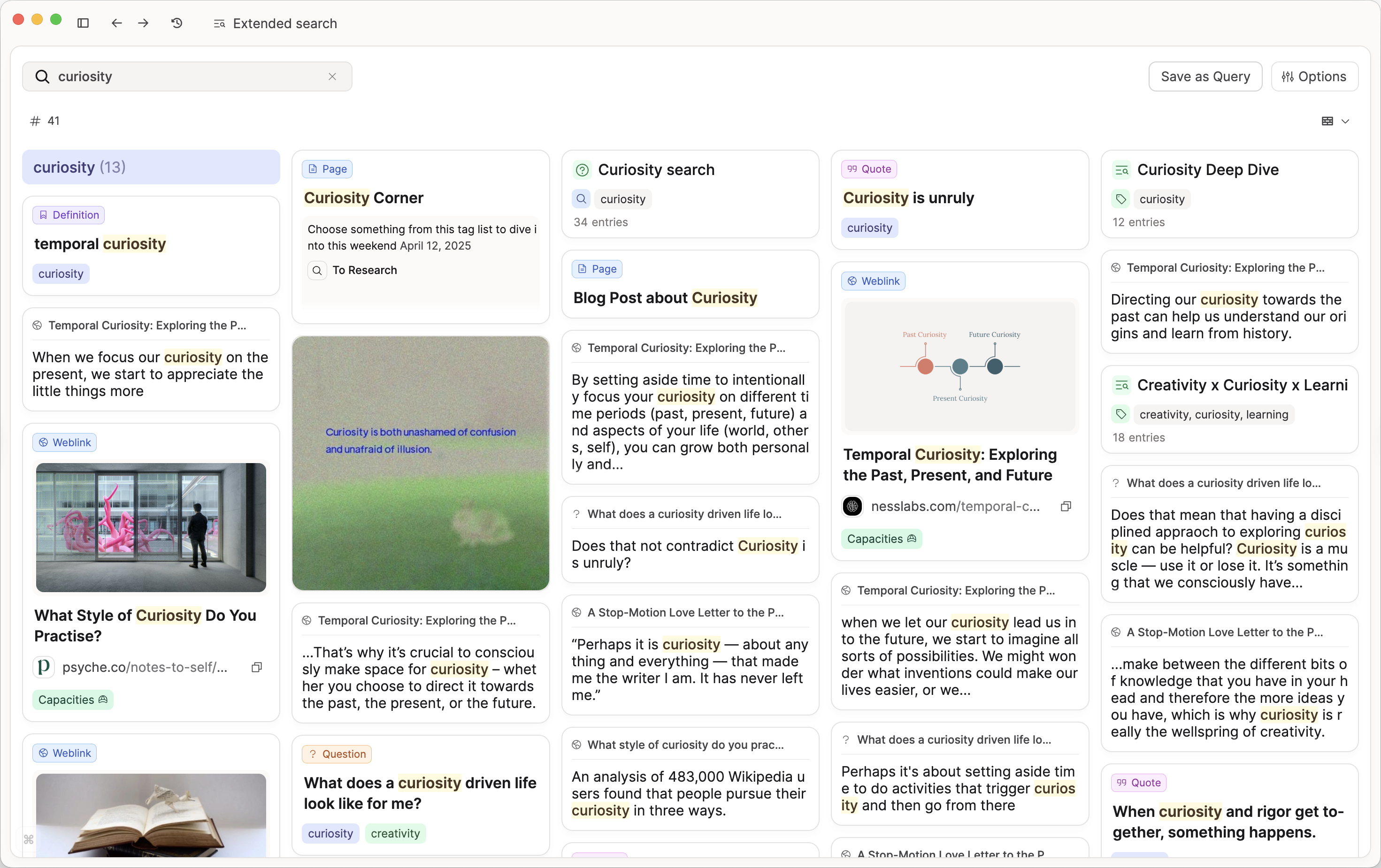
Capacities ProYou can open any search as a full page search for content in your space and filter the results by object type, tags, and more.
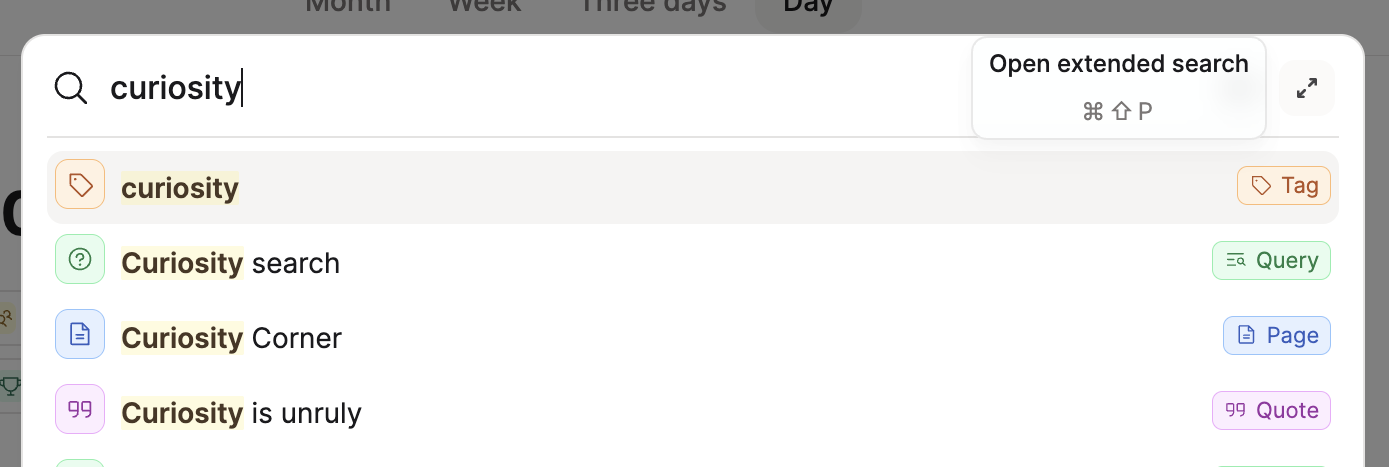
You can open the extended search by clicking the arrows in the command palette or by pressing Cmd + Shift + P (Mac) or Ctrl + Shift + P (Windows).
TIP
Click on the arrows whilst holding down shift to open the search in the side panel.
After you open the extended search you can refine your search with different search options. You can filter by object type, tags, and more. You can also only return objects, or blocks, limit your results, or group them by object type.
If you want to return to this extended search in the future, you can save it as a query.
Command Palette Actions
If you love working with your keyboard only the command palette is for you. It's integrated in the content search.
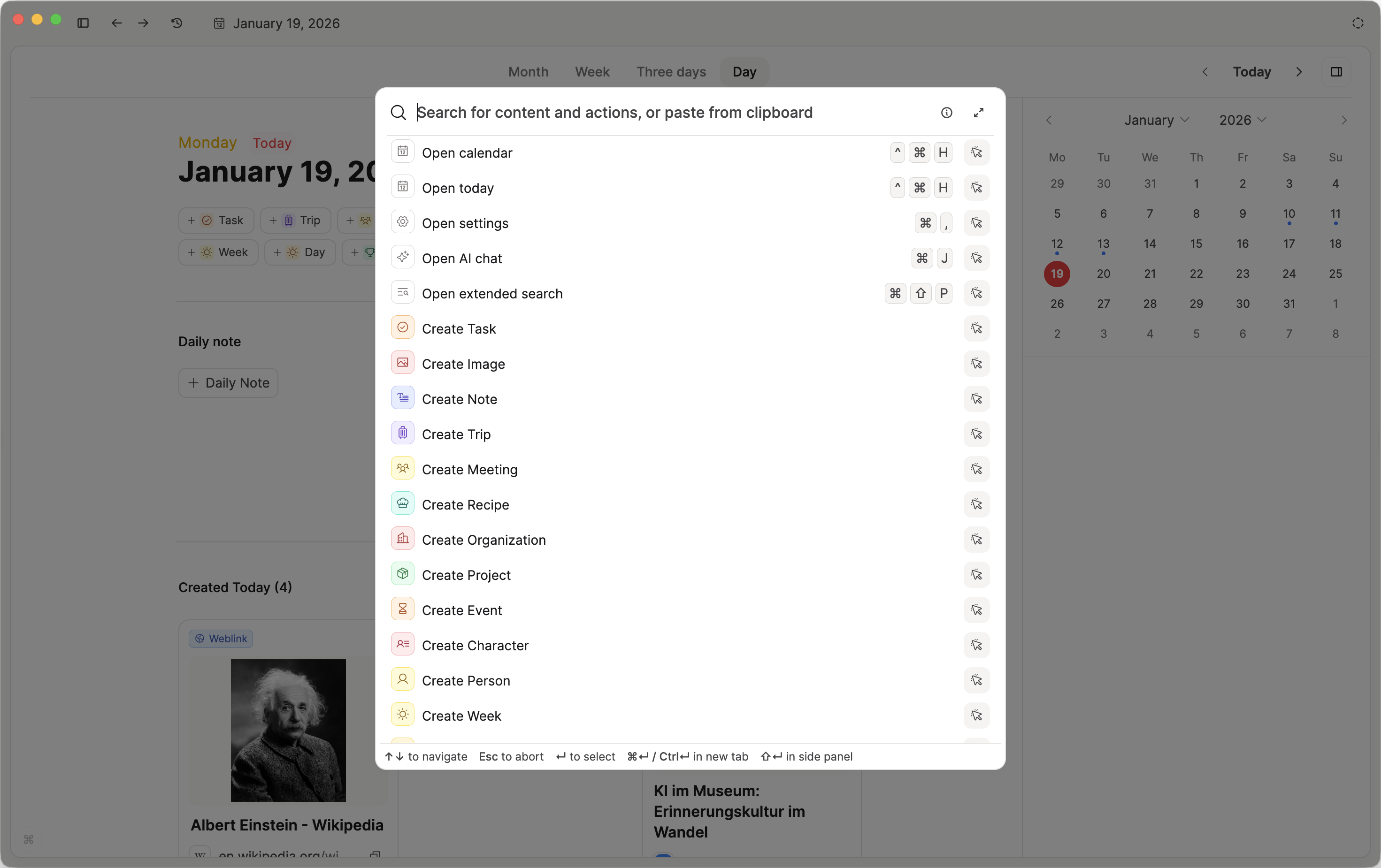
Here is a list of commands you can execute:
Switch spaces: Search "Open
<space-name>" to navigate to another space.Open calendar: Search "Open calendar" or "Open today" to navigate to the calendar
Create task: Type
taskinto the search bar and click 'Create task'.Utilities: Search for "Send feedback", "Open docs", "Help", or "Open community".
INFO
If you have other actions that you’d like to access from the command palette, just share them with us on our feedback board.
Paste any content
When your command palette is open, you can paste any kind of content and add it to your space. For example, you can:
Paste text to add it to your daily note or create a page from it
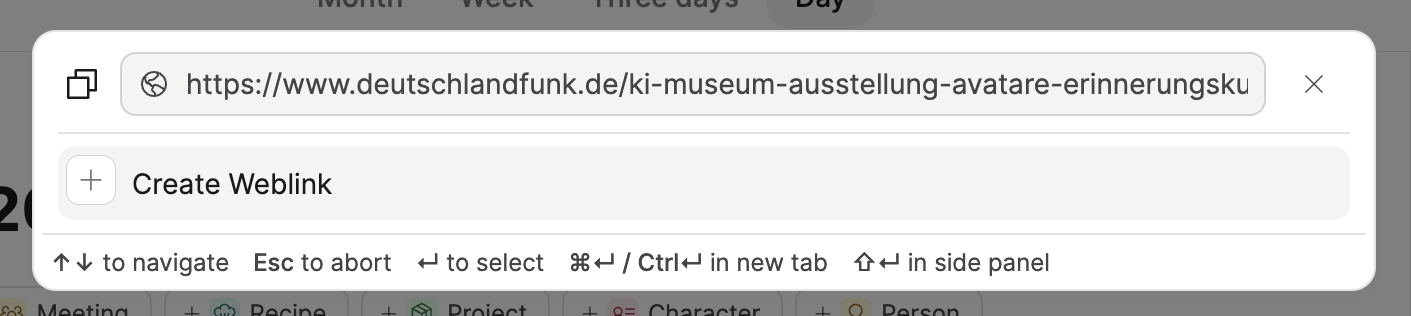
Paste a web link to save it to your web link (or image) object types
Paste files to add them to the corresponding object types

- If all files are of the same type you can also directly add them to a collection
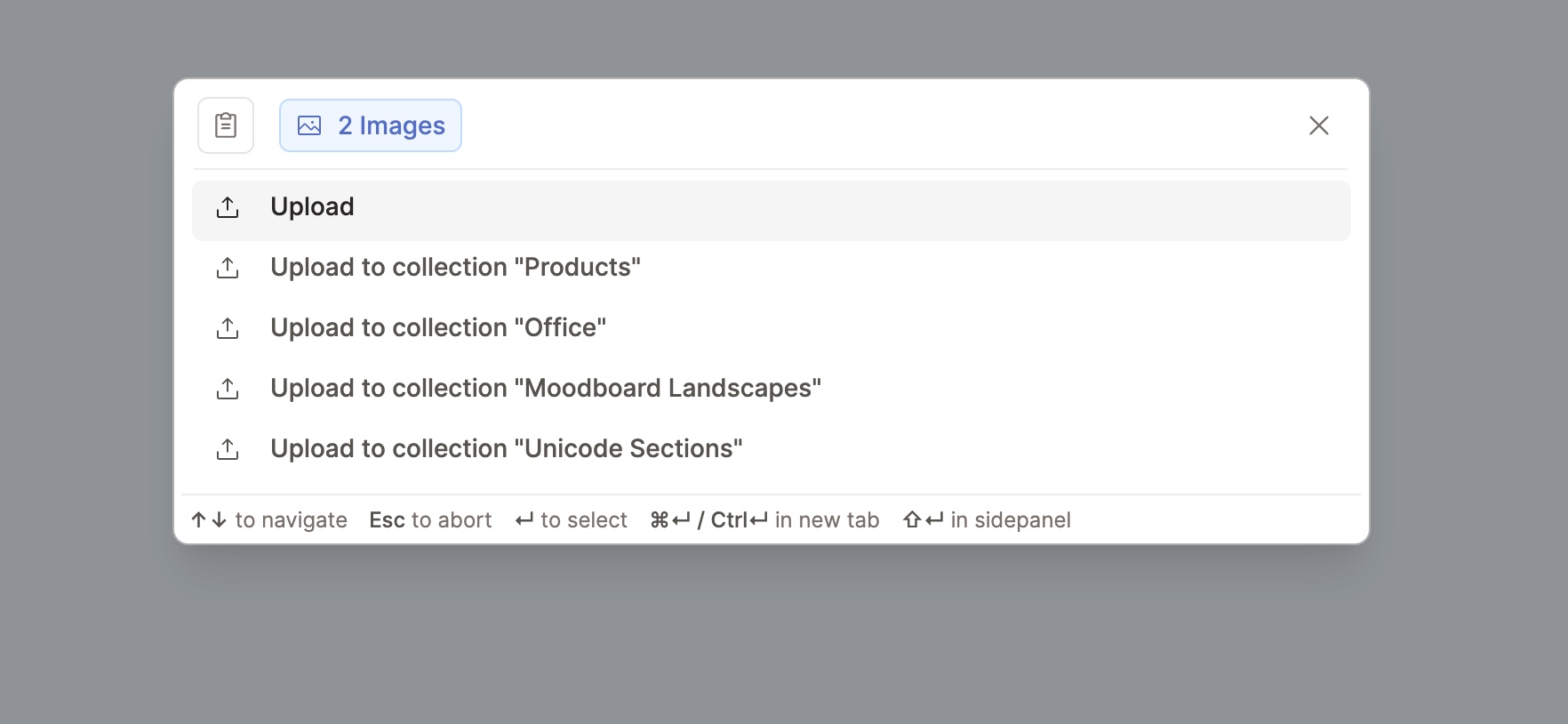
if all files are of the same type you can also directly add them to a collection
if you're pasting a markdown or text file you can convert it into a page automatically
Linking search
When you press @ or [[]], a mini-search comes up. This is where you find the object you would like to link to. We can call this linking search.
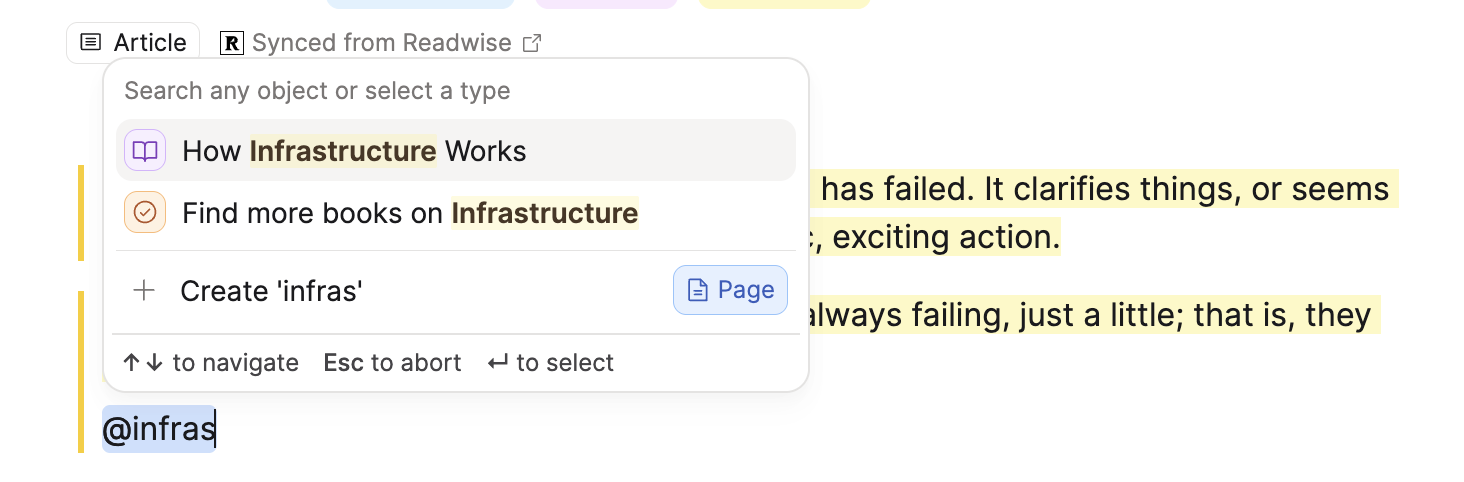
You can either open the object picker to search, or choose the object type you're looking for to refine the search further before picking your desired object.
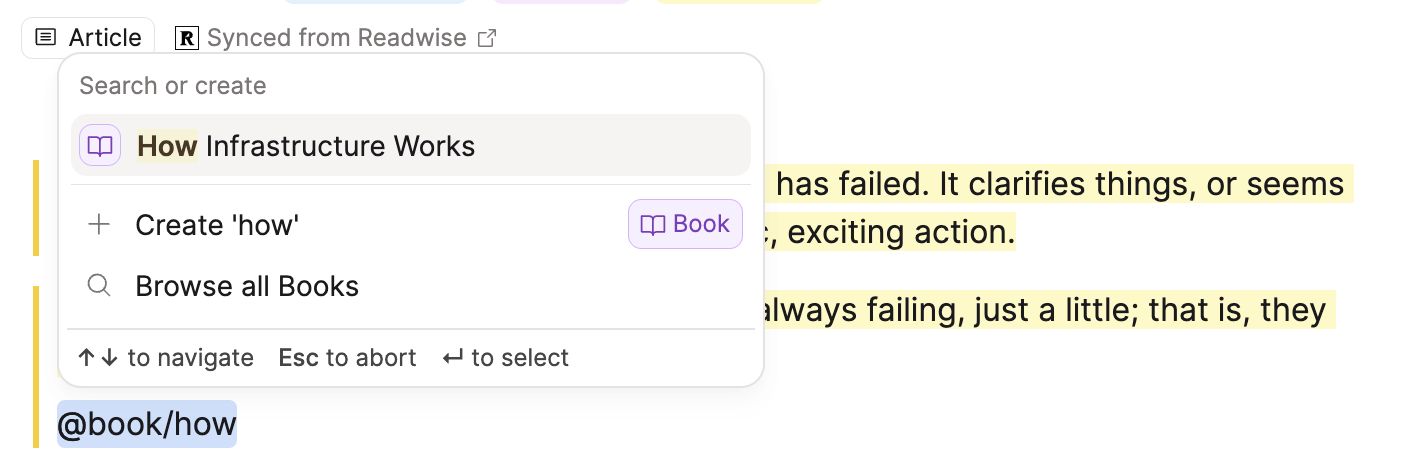
You can also search for aliases in the linking search. When you select an alias, it will be used as the link text instead of the original title.
TIP
This works in text properties too!
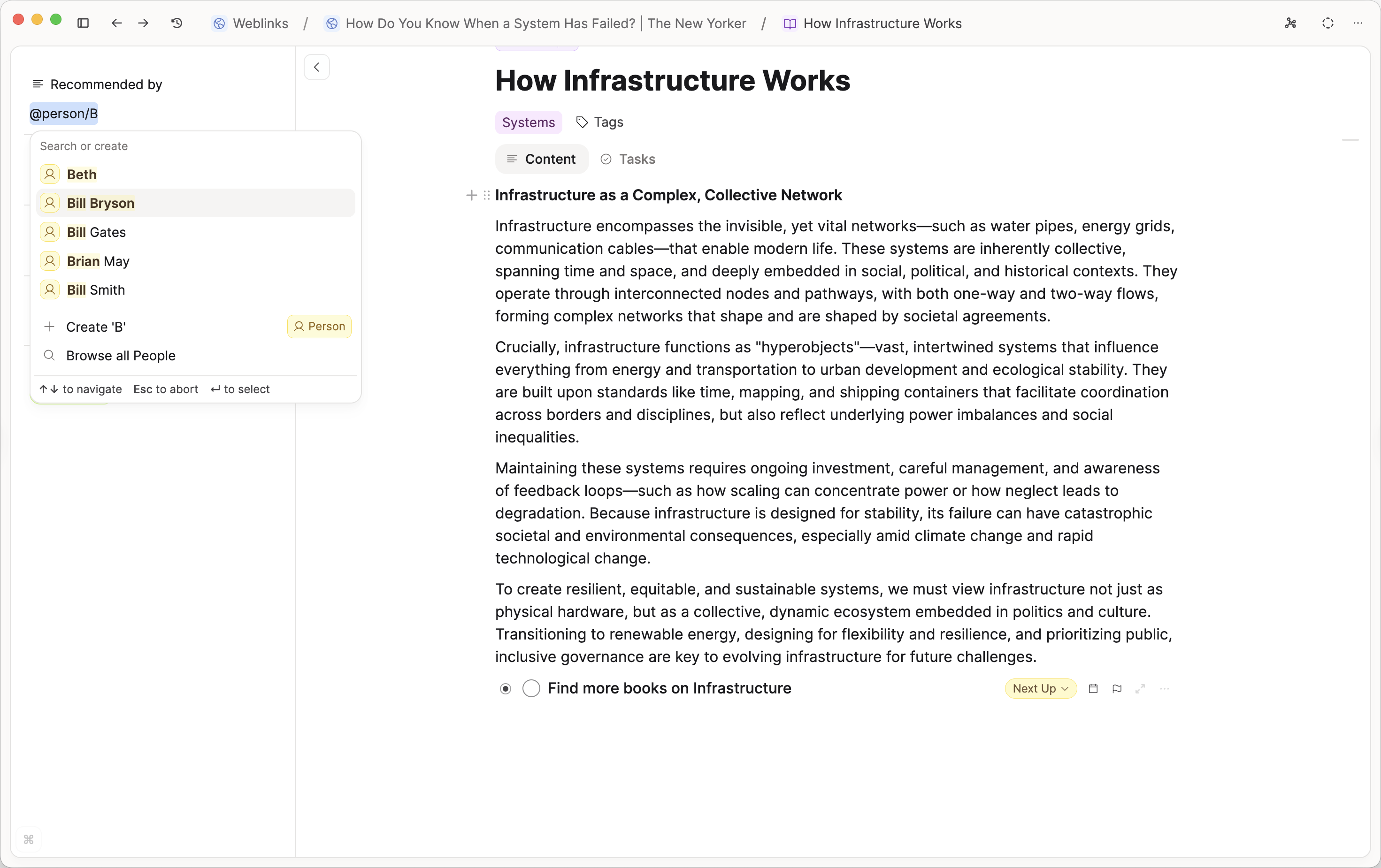
Searching for blocks
You can also search for individual blocks by typing ((. This opens a search where you can find and link to any block in your space. The search results show the name of the containing object on the right to help you find the correct block.
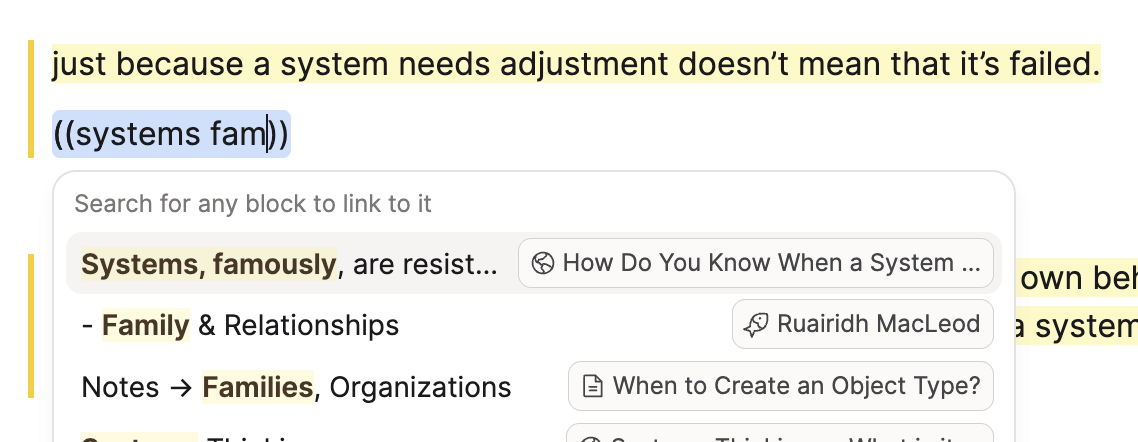
Learn more about block-based linking, including how to embed blocks and use transclusion.
Global Search
Capacities ProThe Raycast integration allows you to search for content in all your spaces from anywhere on your computer.
Simply run the Search Content command from anywhere on your Mac and you will see search results from every space, labelled with their home space and object type.
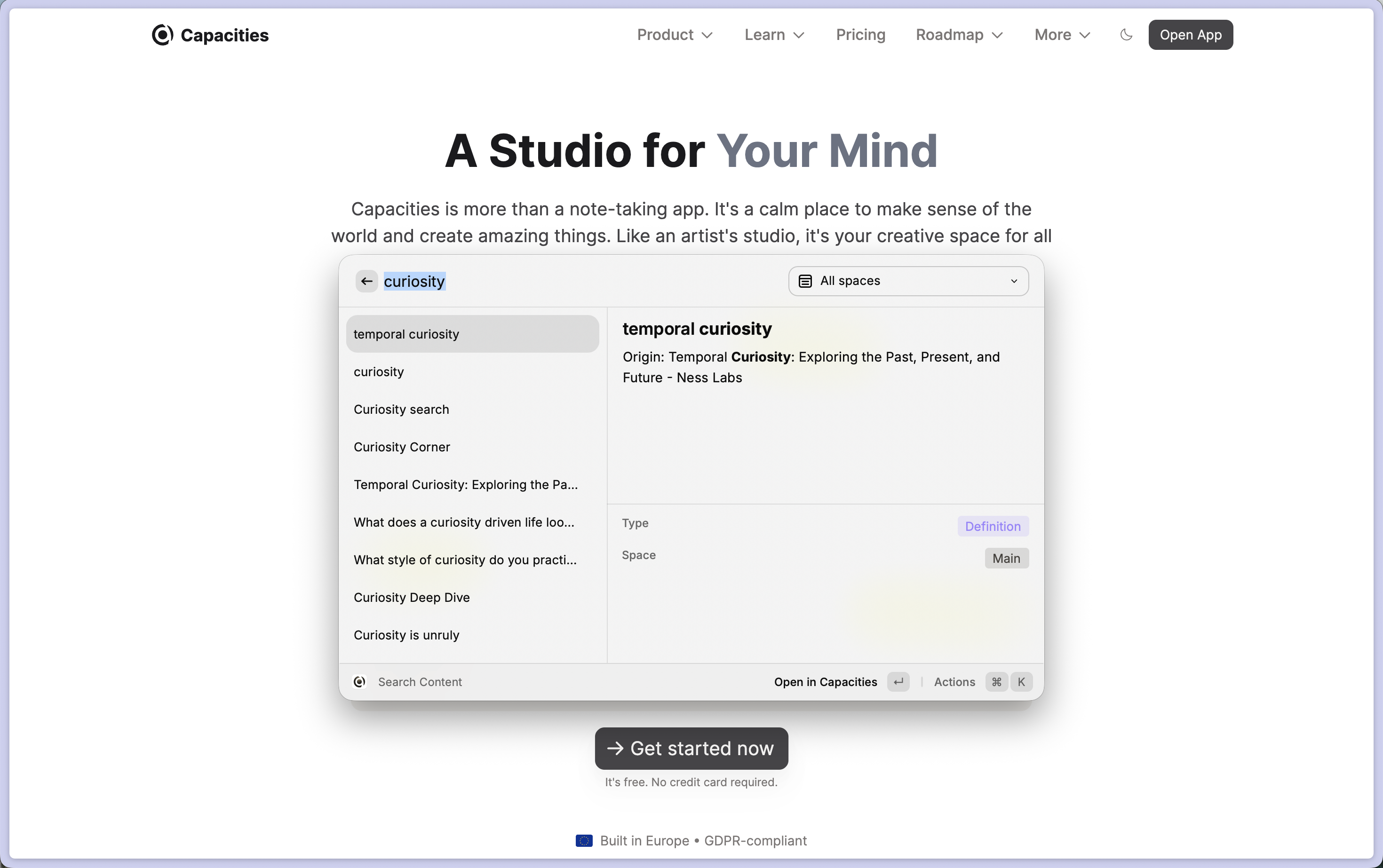
Navigate to the result you want with your arrows and click enter to load that object in the relevant space.
FAQs
How can I search for properties? You can simply search for property values (not property names) in the command palette or in the extended search. They will be displayed in the search results.
I can't find the alias when I hover over the title? Ensure you have added the alias property to your object type.
I can't see any buttons when I hover over the title to add an alias You can simply add an alias via the object menu. Click on the "Customize" button and then "Add aliases". Learn more about aliases.
I'm having problems with search Please try reindexing your content in Settings > Offline & Sync > Recalculate content index.
How can I filter for tags Either search on your tag page or use tag queries to filter your search results by tags.
Does the search engine support fuzzy search, if I make a spelling mistake? Our search engine only searches for exact matches.
When did all these search changes occur? We launched Search 2.0 in January 2025. You can see the full list of changes here.