User interface
Focus Mode
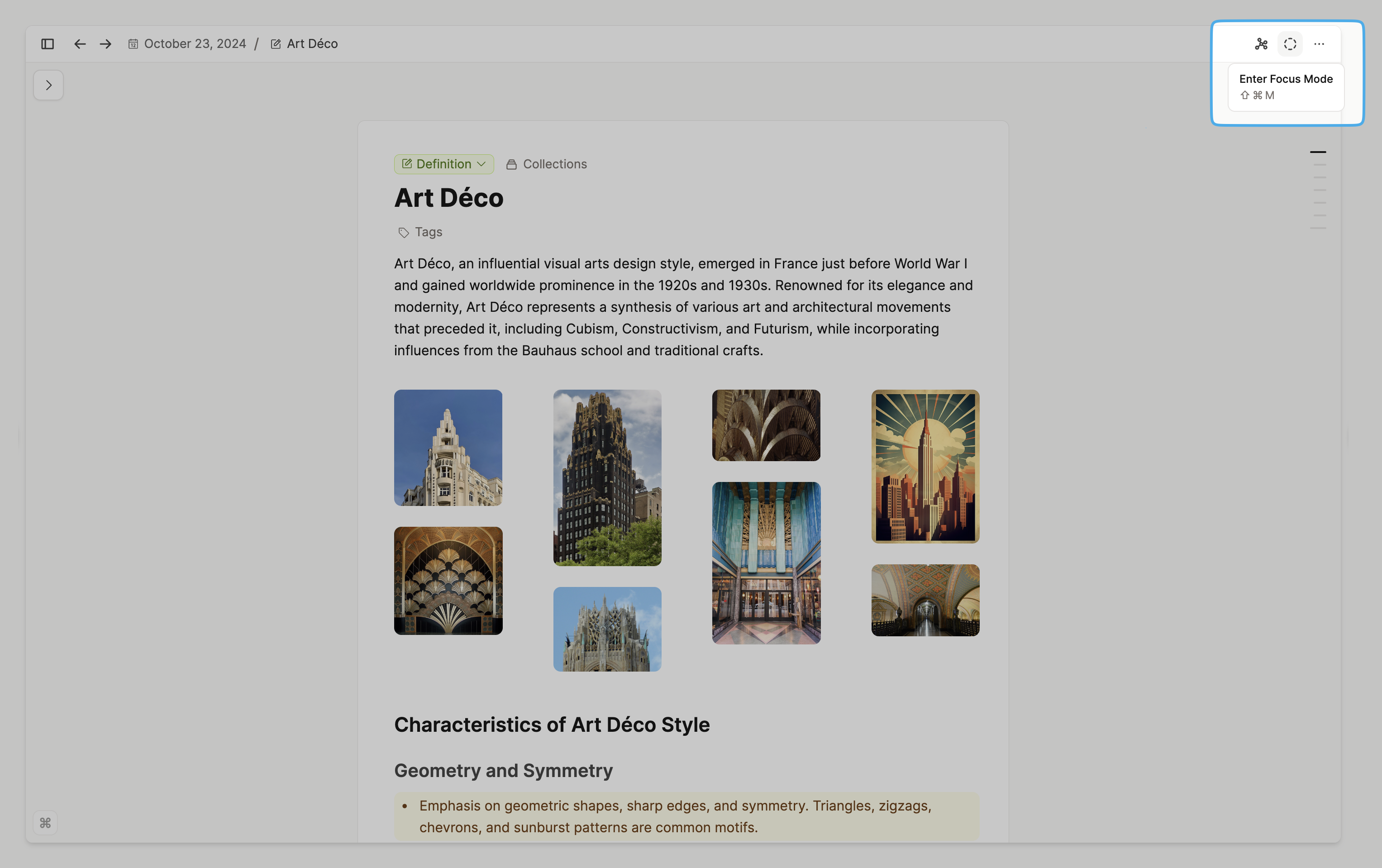
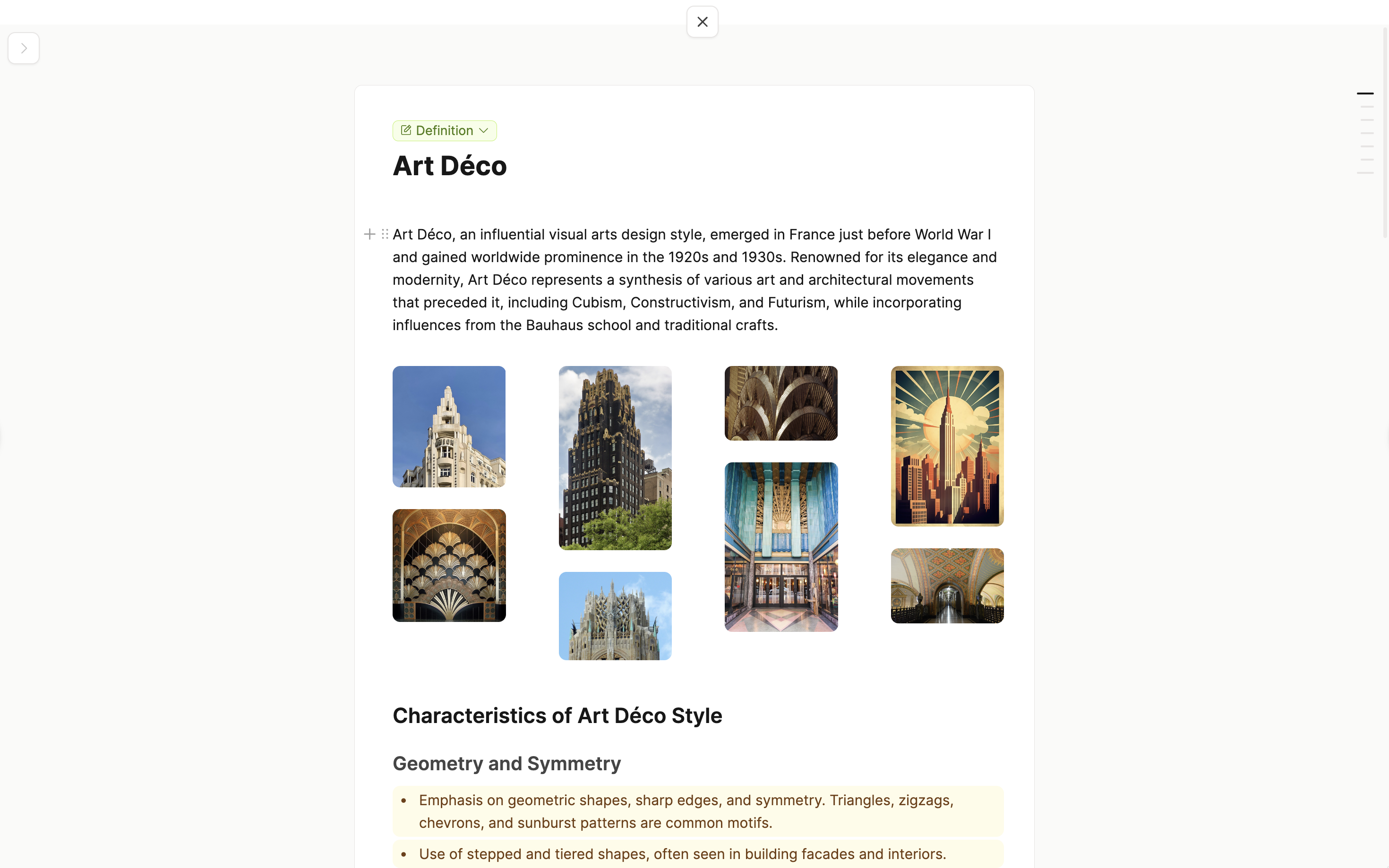
Capacities ProHide all UI elements with the focus mode button, allowing you to focus on the work at hand. Great for getting things done!
Left Sidebar
The left sidebar in Capacities is designed to provide easy access to various features and sections of the app.
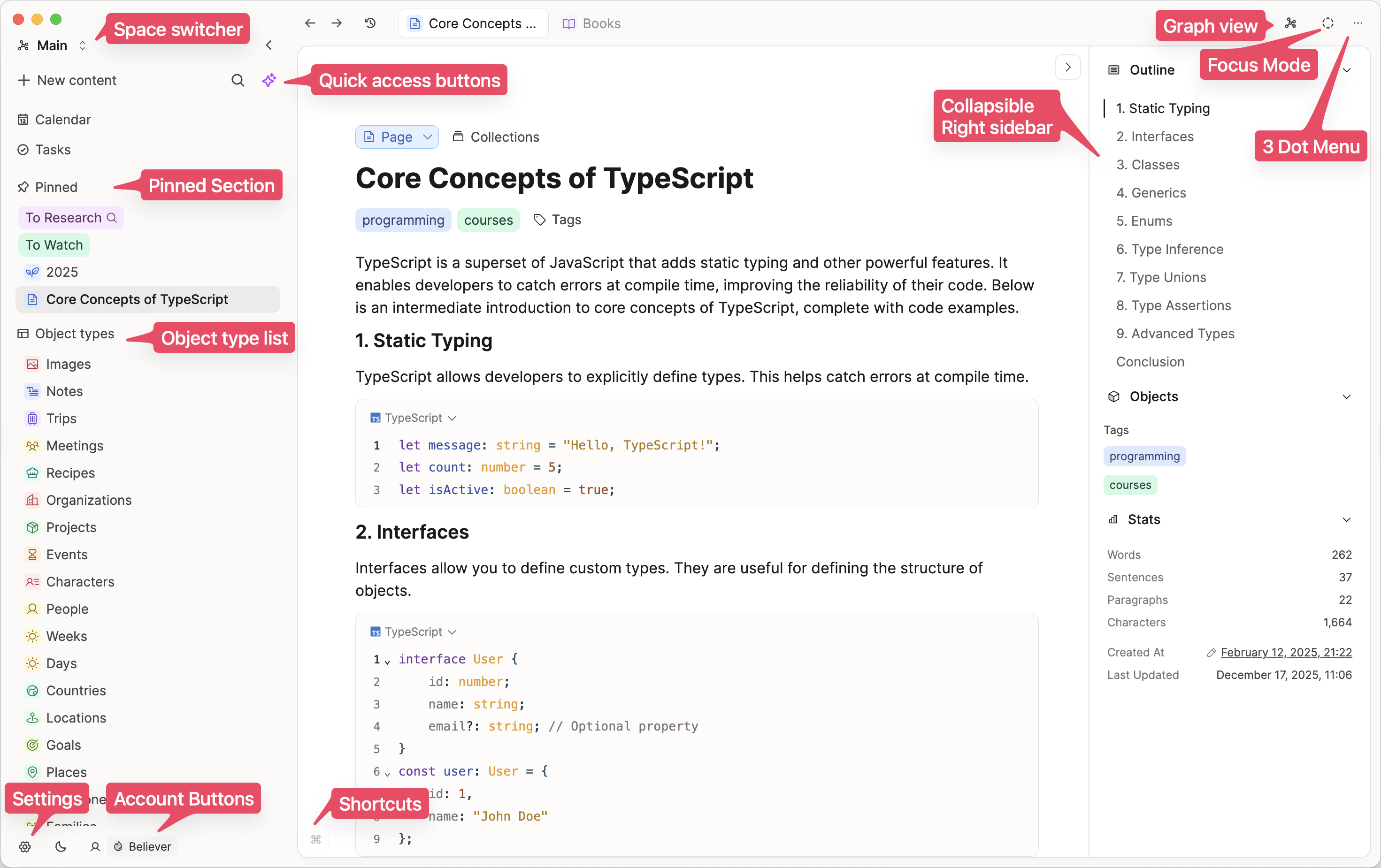
Space Switcher
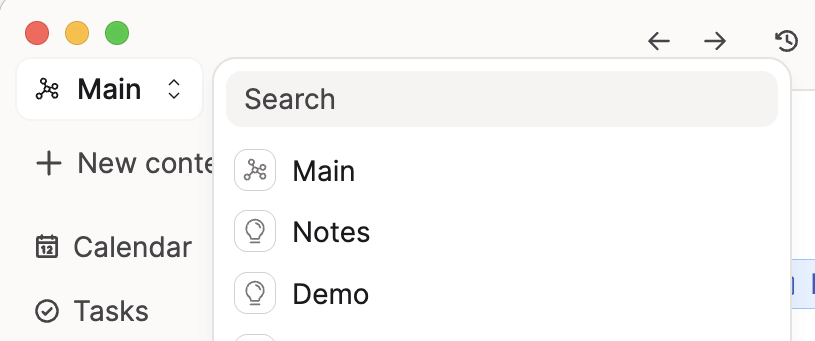
If you have multiple spaces you can switch between them with the button in the top left. If you are a new user, it will be called 'Notes'.
Quick Access Buttons
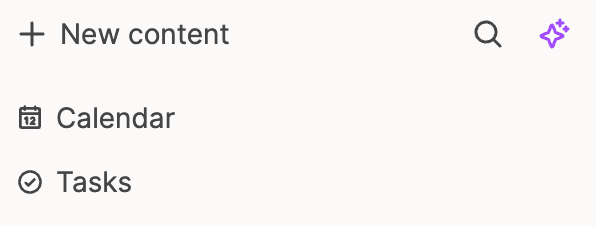
+ New Contentlets you create an object of any type.- The Search icon opens search for the space you are in
- The star icon opens the AI assistant (if you have AI enabled in Capacities)
Calendartakes you to the Capacities central calendar. Double click to go to TodayTaskswill open the task dashboard if you have enabled Capacities Tasks.
Object Type List
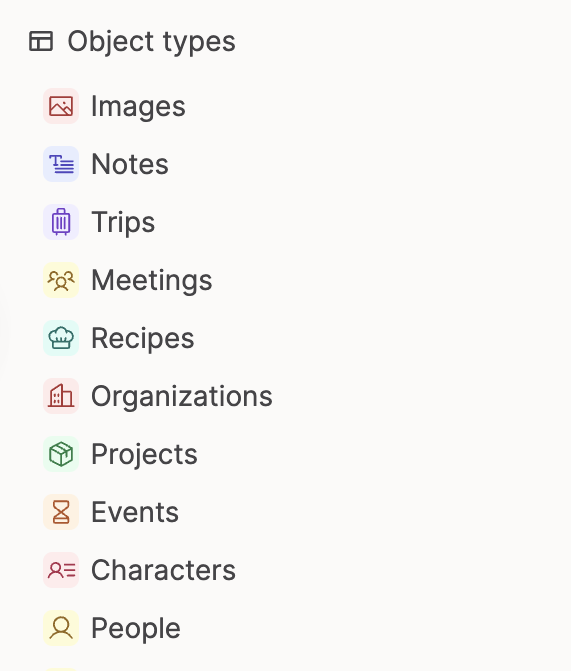
In Capacities, every object has a type. All of your object types will be listed in the sidebar so you can easily access your content by type. The list can be rearranged to suit your preferred order.
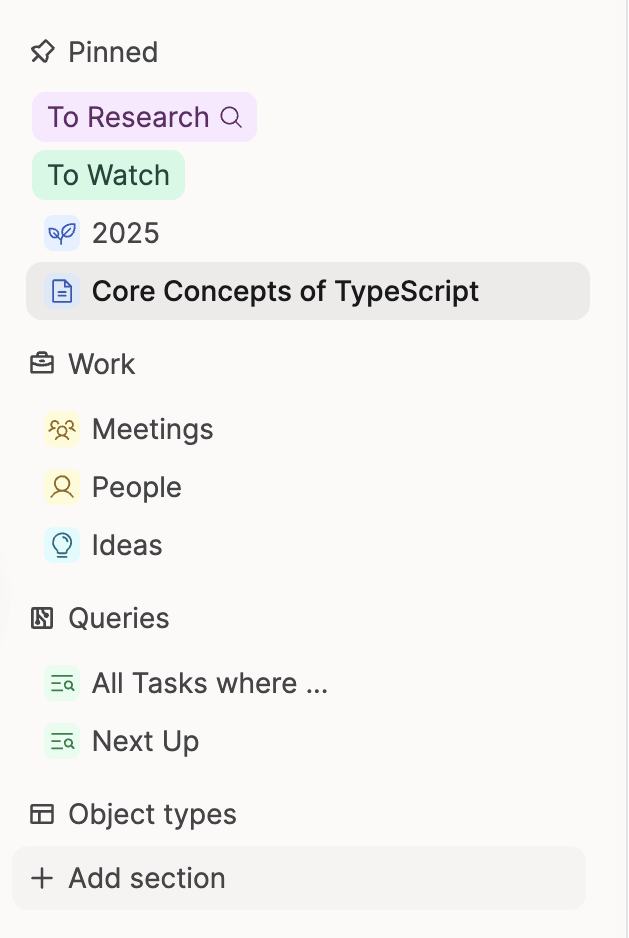
Pinned Sections
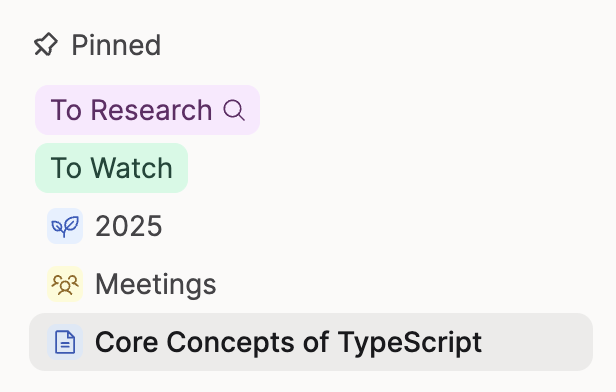
You can pin your most used objects and object types to the sidebar.
To do this, click the + and search for the content you would like to pin.
You can also open the object you would like to pin, go to the three dots in the top right of the window and click 'Pin'. From the list, choose 'Pinned section'.
Custom Sections
Under the object type list, you will see a button called New Section. You can create your own groups in the sidebar (e.g. Work, Personal) and include relevant objects and types.
You can pin to these sections by going to the three dots in the top right of the window and clicking 'Pin'. From the list, choose the correct section.
You can also click the + in the section's header and search your content from there.
INFO
If you use custom sections, your object type list will still have all object types listed. You can rearrange and collapse sections though, so if you'd prefer to work with primarily custom sections, then we recommend moving the Object Type list to the bottom of the left sidebar, and closing it. Then you can use your custom sections, and see them first
Help Sections
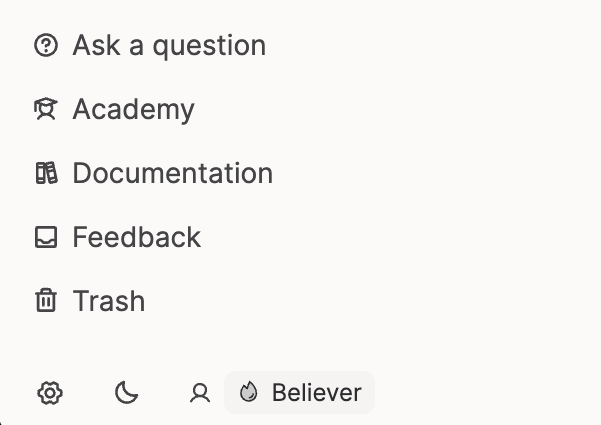
At the bottom of the sidebar you will see links to our chatbot (trained on our documentation and videos), the academy, the documentation, our feedback board and your trash.
Account Buttons
At the very bottom of the screen you will always see the settings cog, the appearence toggle (sun/moon) and your account details. You can log out from here.
FAQs
Why is my left sidebar emtpy?
Please refresh your app with Cmd R (Mac) or Ctrl + R (Windows)
Why can't I see my object type list?
Your sidebar sections might be toggled closed. If you see 'Object types' listed in the sidebar, please click on it.
Why can't I see focus mode? Focus mode is a Capacities Pro feature. Please ensure you are on a paid plan.